

1.1 Authentication
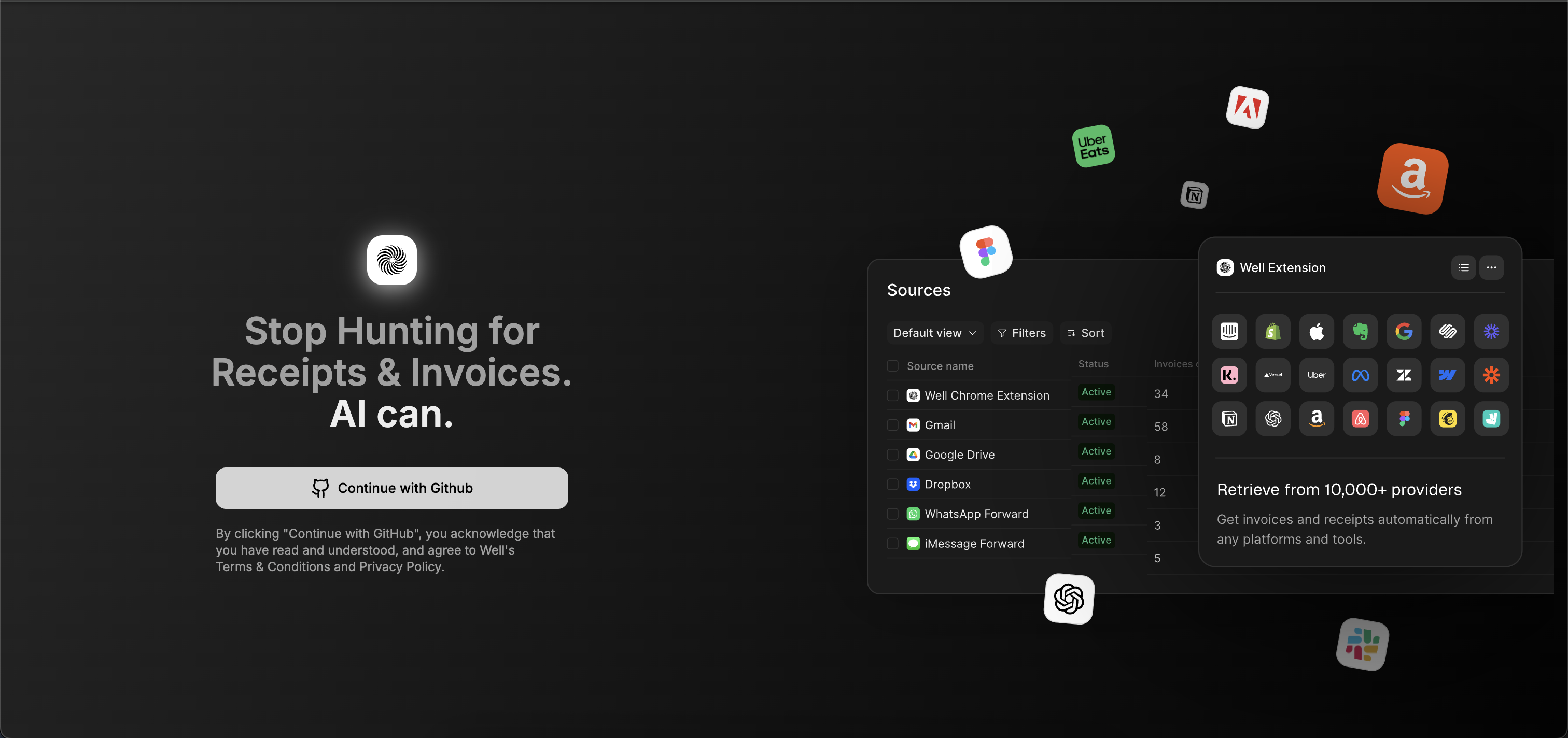
- Log into the Well web application: https://app.test.wellapp.ai/
- Create a new workspace for your organization.
- Keep the Workspace ID safe — it will be needed for API calls.
1.2 Generate an API Token
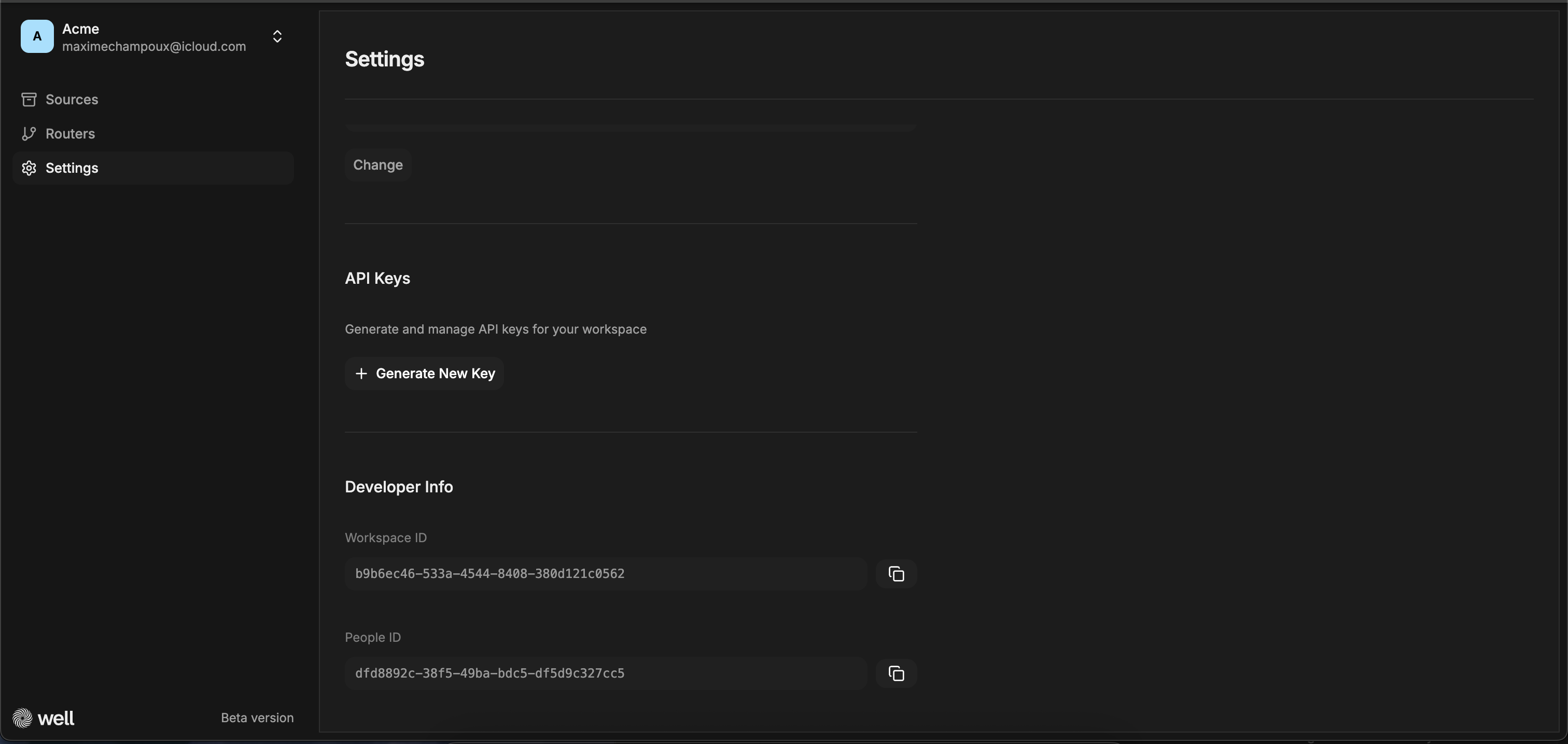
- Go in the app in the settings to generate your API key. https://app.test.wellapp.ai/app
- This token will authenticate all future API calls.
- Store it securely; treat it like a password.
2. Basic Flow
Create a Workspace
2.1. Create as many workspaces as you have customers
Whenever one of your customer will install the connector in the instance of a workspace, we will create the people object and link it with the object. If you don’t want to store our ID of workspace, you have the capacity to include your ownexternal_workspace_id as a reference of the workspace created. It’s optional.
For any new customer that wants to install our connector, workspace creation is considered as a pre-requirement.
Set Up a Webhook
2.2. Configure a Webhook per workspace
To be notified whenever a new document is uploaded in the context of a workspace, and following the installation of gmail driver, you must create one webhook.- In each event payload that you subscribe you will get
workspace_id,external_workspace_idandpeople_idas attributes. - It’s possible to filter out a webhook per workspace and only receive events for a given
workspace_idorexternal_workspace_id.
2.3. To get the installation link of the Gmail driver, you will need to call a dedicated endpoint.
This endpoint looks like GET/v1/workspaces/{{workspace_id}}/connectors/gmail/access?redirect_url&state=xx
If you are using external_workspace_id as identifier of a workspace, then replace as is: /v1/workspaces/{{external_workspace_id}}/connectors/gmail/access?redirect_url&state=xx
Redirect_url is optional. When not present we may redirect customer to our landing page. If present we redirect at the end of the flow.
Receive events:
company.created, company.updated, company.deleted, document.uploaded, document.processed, document.deleted
Retry policy: 3 retries with exponential backoff, 10s timeout
2.4. Get the status of the Gmail driver connector by fetching the resources
Install Gmail Connector
GET/v1/workspaces/{{external_workspace_id}}/connectors/gmail/
status: active, inactive, or expired.