> ## Documentation Index
> Fetch the complete documentation index at: https://docs.wellapp.ai/llms.txt
> Use this file to discover all available pages before exploring further.
# Get started
## 1.1 Authentication
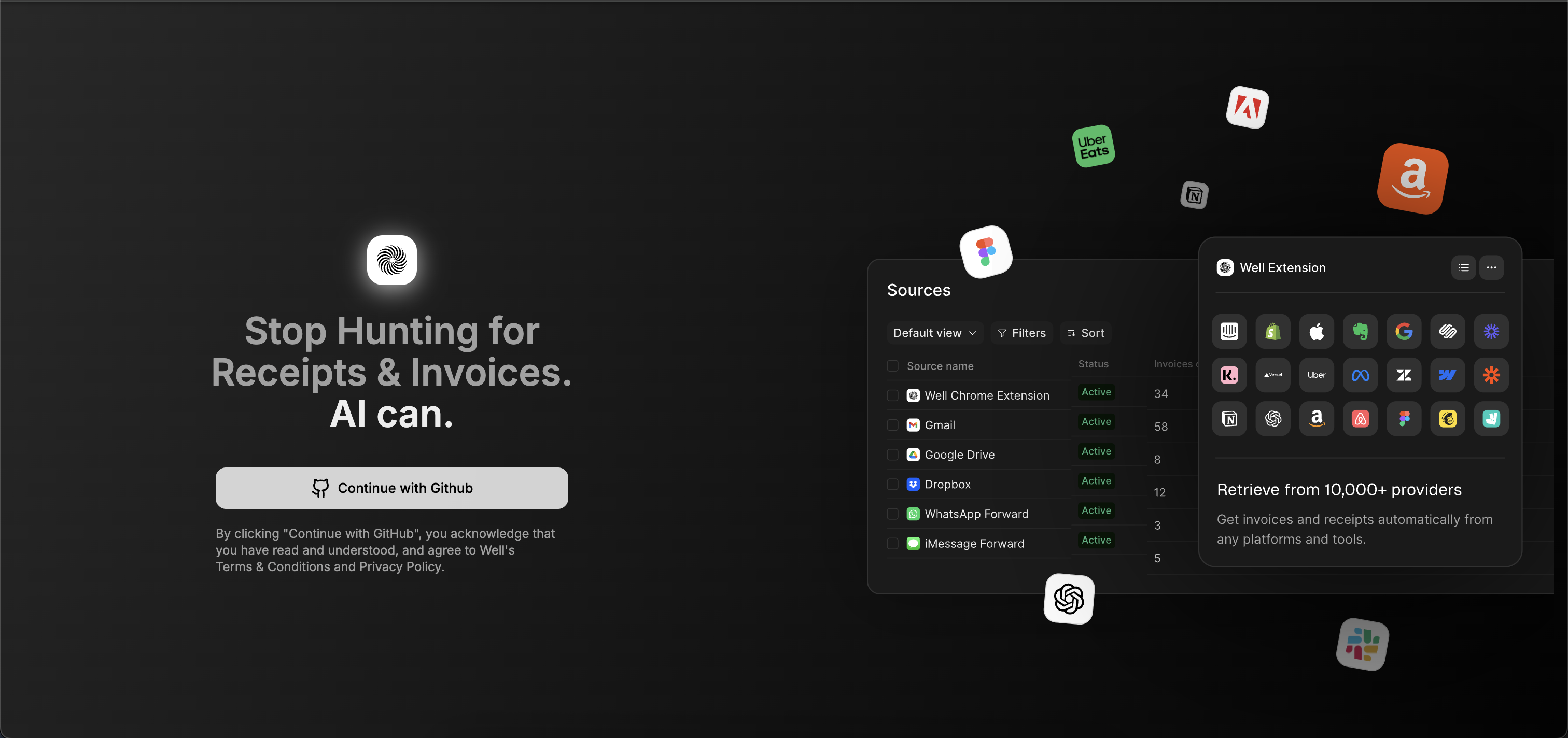 1. Log into the Well web application: [https://app.test.wellapp.ai/](https://app.test.wellapp.ai/)
2. Create a new workspace for your organization.
3. Keep the Workspace ID safe — it will be needed for API calls.
## 1.2 Generate an API Token
1. Log into the Well web application: [https://app.test.wellapp.ai/](https://app.test.wellapp.ai/)
2. Create a new workspace for your organization.
3. Keep the Workspace ID safe — it will be needed for API calls.
## 1.2 Generate an API Token
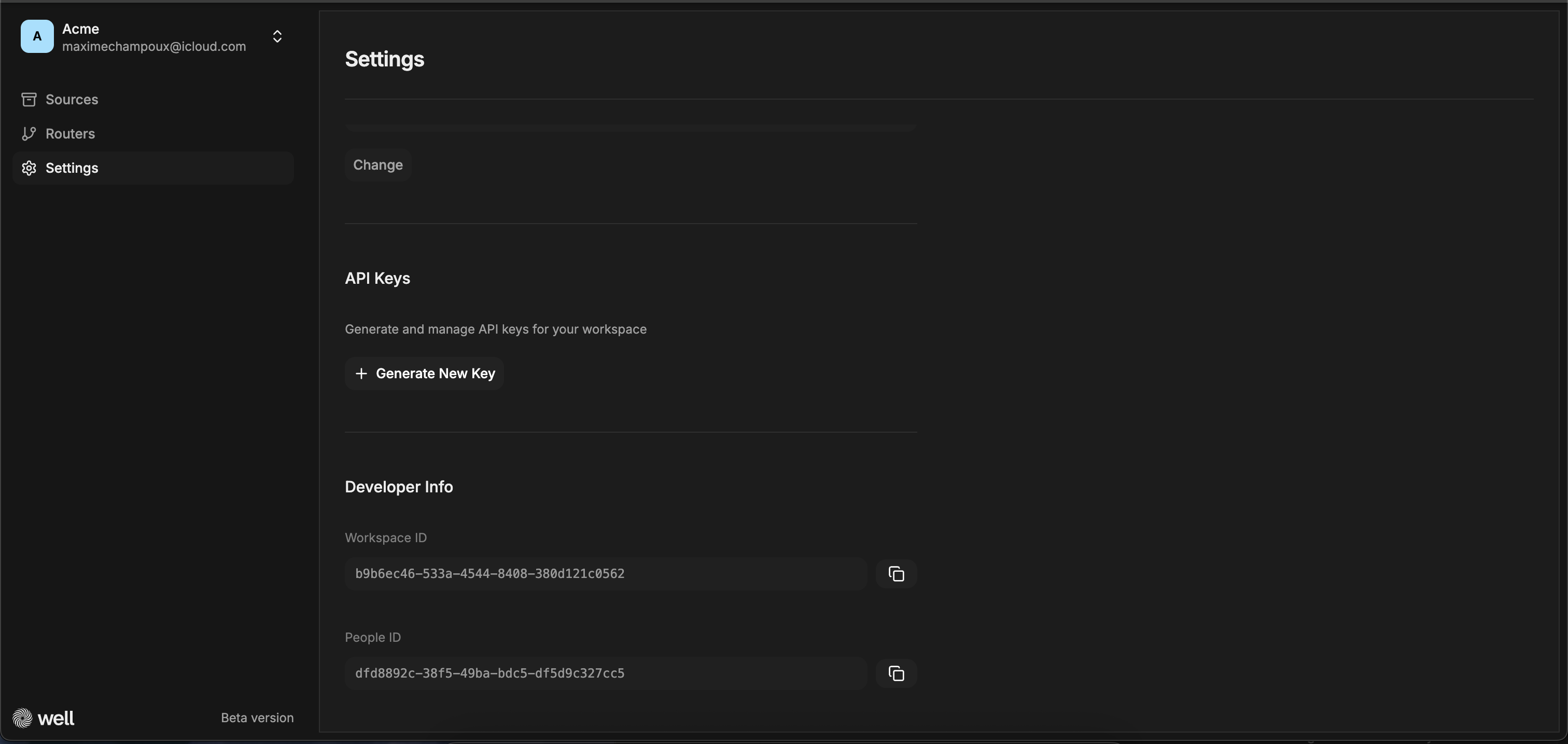 1. Go in the app in the settings to generate your API key. [https://app.test.wellapp.ai/app](https://app.test.wellapp.ai/app)
2. This token will authenticate all future API calls.
3. Store it securely; treat it like a password.
## 2. Basic Flow
### Create a Workspace
```bash theme={null}
POST /v1/workspaces
```
```json theme={null}
{
"data": {
"type": "workspace",
"attributes": {
"name": "Customer Workspace",
"external_workspace_id": "your-customer-id"
}
}
}
```
## 2.1. Create as many workspaces as you have customers
Whenever one of your customer will install the connector in the instance of a workspace, we will create the people object and link it with the object.
If you don’t want to store our ID of workspace, you have the capacity to include your own `external_workspace_id` as a reference of the workspace created. It’s optional.
For any new customer that wants to install our connector, workspace creation is considered as a pre-requirement.
### Set Up a Webhook
```bash theme={null}
POST /v1/webhooks
```
```json theme={null}
{
"data": {
"type": "webhook",
"attributes": {
"url": "https://your-app.com/webhook",
"events": ["document.uploaded", "company.created"],
"workspace_id": "workspace_id"
}
}
}
```
## 2.2. Configure a Webhook per workspace
To be notified whenever a new document is uploaded in the context of a workspace, and following the installation of gmail driver, you must create one webhook.
* In each event payload that you subscribe you will get `workspace_id`,`external_workspace_id` and `people_id` as attributes.
* It’s possible to filter out a webhook per workspace and only receive events for a given `workspace_id` or `external_workspace_id`.
## 2.3. To get the installation link of the Gmail driver, you will need to call a dedicated endpoint.
This endpoint looks like GET `/v1/workspaces/{{workspace_id}}/connectors/gmail/access?redirect_url&state=xx`
If you are using external\_workspace\_id as identifier of a workspace, then replace as is: `/v1/workspaces/{{external_workspace_id}}/connectors/gmail/access?redirect_url&state=xx`
Redirect\_url is optional. When not present we may redirect customer to our landing page. If present we redirect at the end of the flow.
**Receive events:**
```javascript theme={null}
app.post("/webhook", (req, res) => {
const { event, data } = req.body;
// Process event
res.status(200).send("OK");
});
```
**Supported events:** `company.created`, `company.updated`, `company.deleted`, `document.uploaded`, `document.processed`, `document.deleted`
**Retry policy:** 3 retries with exponential backoff, 10s timeout
## 2.4. Get the status of the Gmail driver connector by fetching the resources
### Install Gmail Connector
GET `/v1/workspaces/{{external_workspace_id}}/connectors/gmail/`
```jsx theme={null}
{
"data": {
"type": "connector",
"attributes": {
"connector_type": "gmail",
"external_workspace_id": "fygr-test-123",
"expires_at": "2025-09-04T14:26:13.905Z",
"status": "active"
},
"relationship": {
"created_by": { "data": { "type": "people", "id": "people1" } },
}
}
}
```
Get installation link:
```bash theme={null}
GET /v1/workspaces/{workspace_id}/connectors/gmail/access?redirect_url=https://your-app.com
```
Returns connector `status`: `active`, `inactive`, or `expired`.
1. Go in the app in the settings to generate your API key. [https://app.test.wellapp.ai/app](https://app.test.wellapp.ai/app)
2. This token will authenticate all future API calls.
3. Store it securely; treat it like a password.
## 2. Basic Flow
### Create a Workspace
```bash theme={null}
POST /v1/workspaces
```
```json theme={null}
{
"data": {
"type": "workspace",
"attributes": {
"name": "Customer Workspace",
"external_workspace_id": "your-customer-id"
}
}
}
```
## 2.1. Create as many workspaces as you have customers
Whenever one of your customer will install the connector in the instance of a workspace, we will create the people object and link it with the object.
If you don’t want to store our ID of workspace, you have the capacity to include your own `external_workspace_id` as a reference of the workspace created. It’s optional.
For any new customer that wants to install our connector, workspace creation is considered as a pre-requirement.
### Set Up a Webhook
```bash theme={null}
POST /v1/webhooks
```
```json theme={null}
{
"data": {
"type": "webhook",
"attributes": {
"url": "https://your-app.com/webhook",
"events": ["document.uploaded", "company.created"],
"workspace_id": "workspace_id"
}
}
}
```
## 2.2. Configure a Webhook per workspace
To be notified whenever a new document is uploaded in the context of a workspace, and following the installation of gmail driver, you must create one webhook.
* In each event payload that you subscribe you will get `workspace_id`,`external_workspace_id` and `people_id` as attributes.
* It’s possible to filter out a webhook per workspace and only receive events for a given `workspace_id` or `external_workspace_id`.
## 2.3. To get the installation link of the Gmail driver, you will need to call a dedicated endpoint.
This endpoint looks like GET `/v1/workspaces/{{workspace_id}}/connectors/gmail/access?redirect_url&state=xx`
If you are using external\_workspace\_id as identifier of a workspace, then replace as is: `/v1/workspaces/{{external_workspace_id}}/connectors/gmail/access?redirect_url&state=xx`
Redirect\_url is optional. When not present we may redirect customer to our landing page. If present we redirect at the end of the flow.
**Receive events:**
```javascript theme={null}
app.post("/webhook", (req, res) => {
const { event, data } = req.body;
// Process event
res.status(200).send("OK");
});
```
**Supported events:** `company.created`, `company.updated`, `company.deleted`, `document.uploaded`, `document.processed`, `document.deleted`
**Retry policy:** 3 retries with exponential backoff, 10s timeout
## 2.4. Get the status of the Gmail driver connector by fetching the resources
### Install Gmail Connector
GET `/v1/workspaces/{{external_workspace_id}}/connectors/gmail/`
```jsx theme={null}
{
"data": {
"type": "connector",
"attributes": {
"connector_type": "gmail",
"external_workspace_id": "fygr-test-123",
"expires_at": "2025-09-04T14:26:13.905Z",
"status": "active"
},
"relationship": {
"created_by": { "data": { "type": "people", "id": "people1" } },
}
}
}
```
Get installation link:
```bash theme={null}
GET /v1/workspaces/{workspace_id}/connectors/gmail/access?redirect_url=https://your-app.com
```
Returns connector `status`: `active`, `inactive`, or `expired`.